How to Attach Brand Folder to Every Chat and Keep Claude On Brand
How to attach brand folder to every chat: set up a reusable brand context folder in Claude Code so AI writes on-brand without re-briefing it each session.


On this page
- Introduction
- The Fastest Way to Attach a Brand Folder to Every Chat
- Choosing Your Surface: Claude Code, an IDE, or Chat Attachment
- Attach the Folder and Save It for Reuse
- What Belongs in Your Brand Folder Before You Attach It
- Why Attaching the Folder Beats Re-Briefing Every Chat
- Common Mistakes When Attaching a Brand Folder
- What This Looks Like in Practice
- Frequently Asked Questions
Introduction
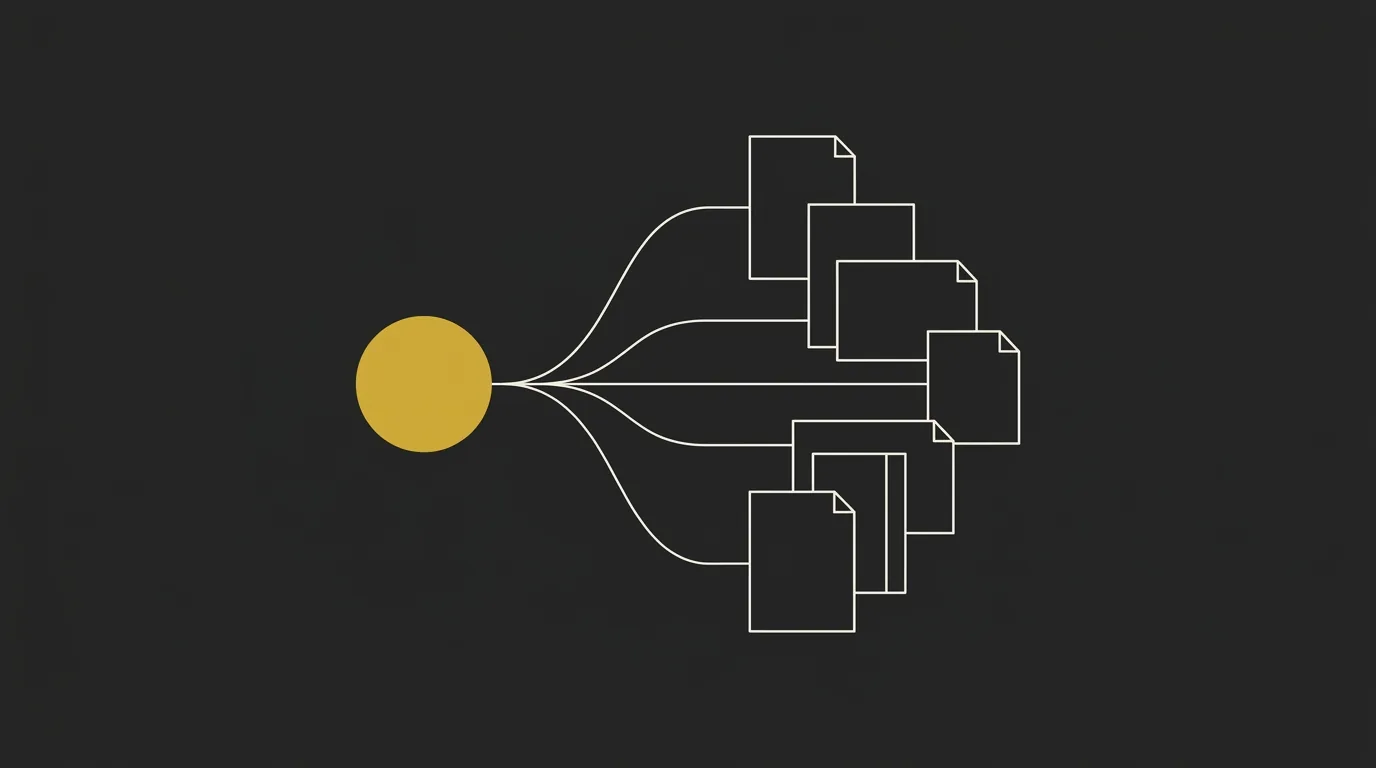
Here’s how to attach a brand folder to every chat so Claude stops asking who you are: pick the surface you work in, attach the folder once, and save that setup so every new session opens with your brand already loaded. Re-briefing the AI from scratch each time is why output drifts toward generic. Every fresh chat starts blank, so the model fills the gaps with whatever it finds, and what it finds is the average of the internet.
Marcus-Aurelius Digital builds a brand context folder as the first onboarding step for every client it works with, because a model with a canonical source describes a brand accurately and a model without one improvises. This article covers which surface to use (Claude Code, an IDE, or chat attachment), the steps to attach and save the folder, and what belongs inside it to keep AI content on brand.
Access the brand context folder creator for free here.
The Fastest Way to Attach a Brand Folder to Every Chat
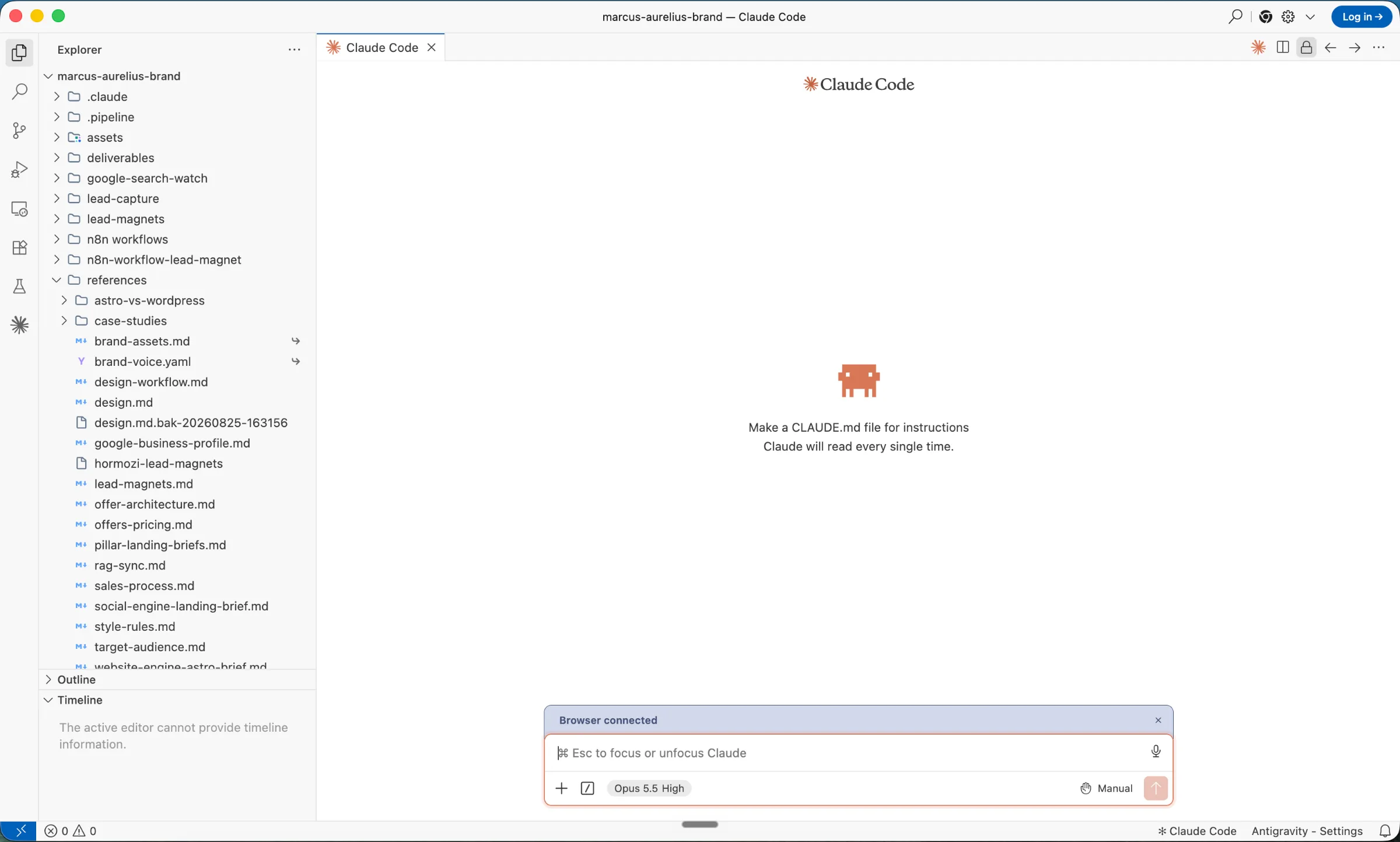
The fastest way is to keep the brand folder in a workspace the AI reads every session, either Claude Code or an IDE like VS Code or (our personal favorite) Google’s Antigravity IDE, and reopen that project each time instead of re-attaching files. The folder loads once per session, so your voice rules, visual rules and services are in context before you type the first request.
That is how we run it at Marcus-Aurelius Digital: Claude Code opens the project, and full brand context loads every chat. If you want a starting point for the folder itself, the brand folder creator walks you through it.
What you’ll need
Three things cover it. Get them in place before you try to attach brand folder to Claude, and the rest is a two-minute job.
| Prerequisite | What you use it for |
|---|---|
| Claude account or Claude Code | Reads files from the folder and generates copy or visual assets |
| A folder of brand files | Voice, visual rules, services, pricing, clients, and opinions |
| An IDE (only if you skip Claude Code) | VS Code or Antigravity, so Claude can open the project folder on every job |
The quick version
Here’s the short sequence. Each step gets its full walkthrough in the sections below.
- Put your brand files in one folder.
- Open that folder as your project in Claude Code or your IDE.
- Reopen the same project for every new chat, so the brand context is already loaded.
Choosing Your Surface: Claude Code, an IDE, or Chat Attachment
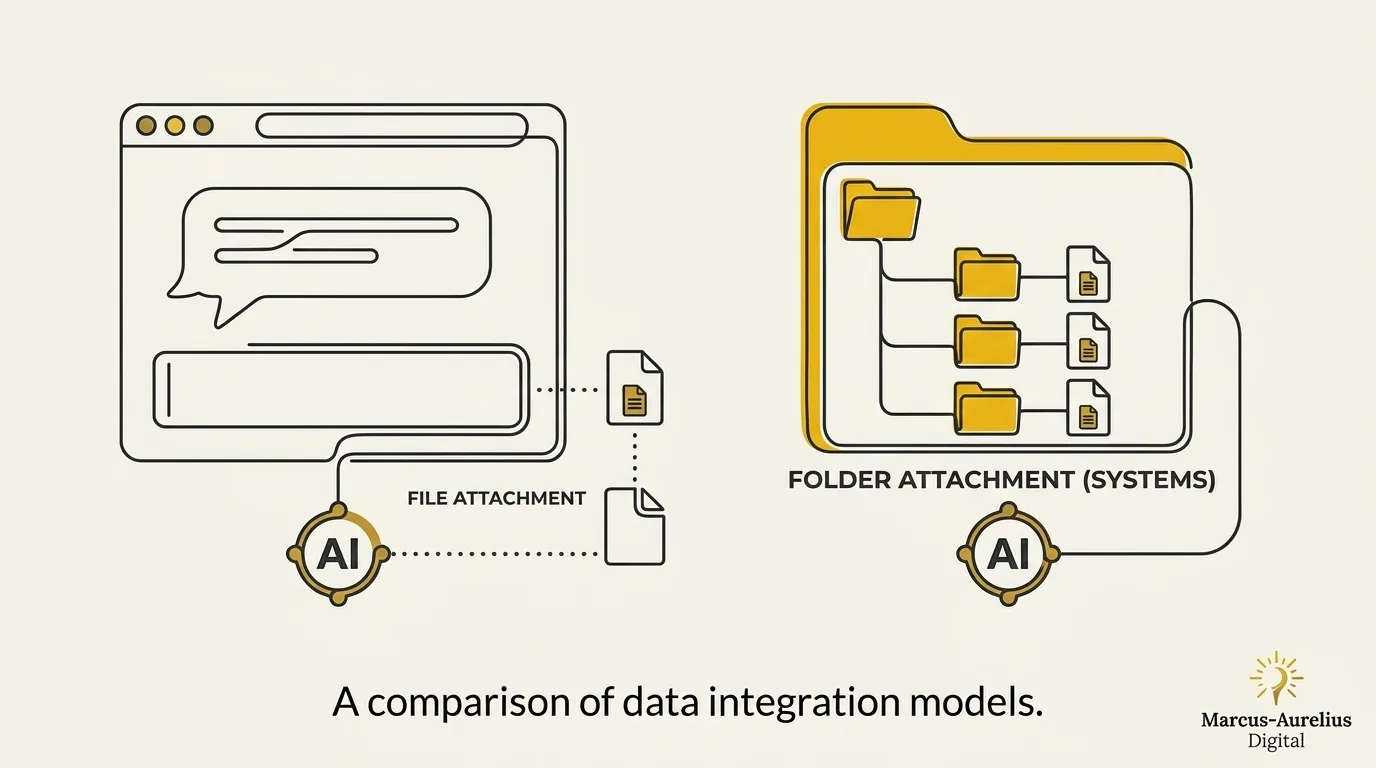
Claude Code and an IDE give the AI the potential to access your whole brand folder every session. If you want Claude to stop asking who you are, you will need an AI harness that can access folders and files.
The table below puts the three surfaces side by side.
| Surface | How the folder is accessed | Persists across sessions | Best for |
|---|---|---|---|
| Claude Code | Claude reads the whole folder inside the project | Yes | Building and production work with full brand context |
| IDE (VS Code or Anti Gravity) | Open the folder as a workspace, and the AI reads all of it | Yes | A master folder per brand, reopened every session |
| Claude chat attachment | You attach files one at a time | No | Brainstorming and early exploration |
Claude Code and an IDE both work from the folder itself, so the context loads when you open the project. Start chat works per file, and a new chat starts with nothing until you attach again.
Here’s how we work. At Marcus-Aurelius Digital we keep a master folder per brand in an IDE (Anti Gravity), so the whole context is there every session. Then we start exploring an idea in chat, ask Claude to write the spec as a markdown file (it can be the CLAUDE.md for the project), and hand that off to Claude Code to build. Chat is for ideation, Code is for building.
Attach the Folder and Save It for Reuse
Setup takes three steps: create the folder, point the AI at it, and save the project so every new chat loads the same context. Run it once and you can attach the brand folder to Claude without repeating the work in later sessions. This brand folder framework works the same in Claude Code or an IDE.
Make one master brand folder with subfolders and open it as a project in Claude Code or your IDE.
Tell the AI to read the folder first, so the files become session context.
Keep the project or workspace and reopen it each time. Every new chat loads the same context.
Step 1: Create the folder and open it in your surface
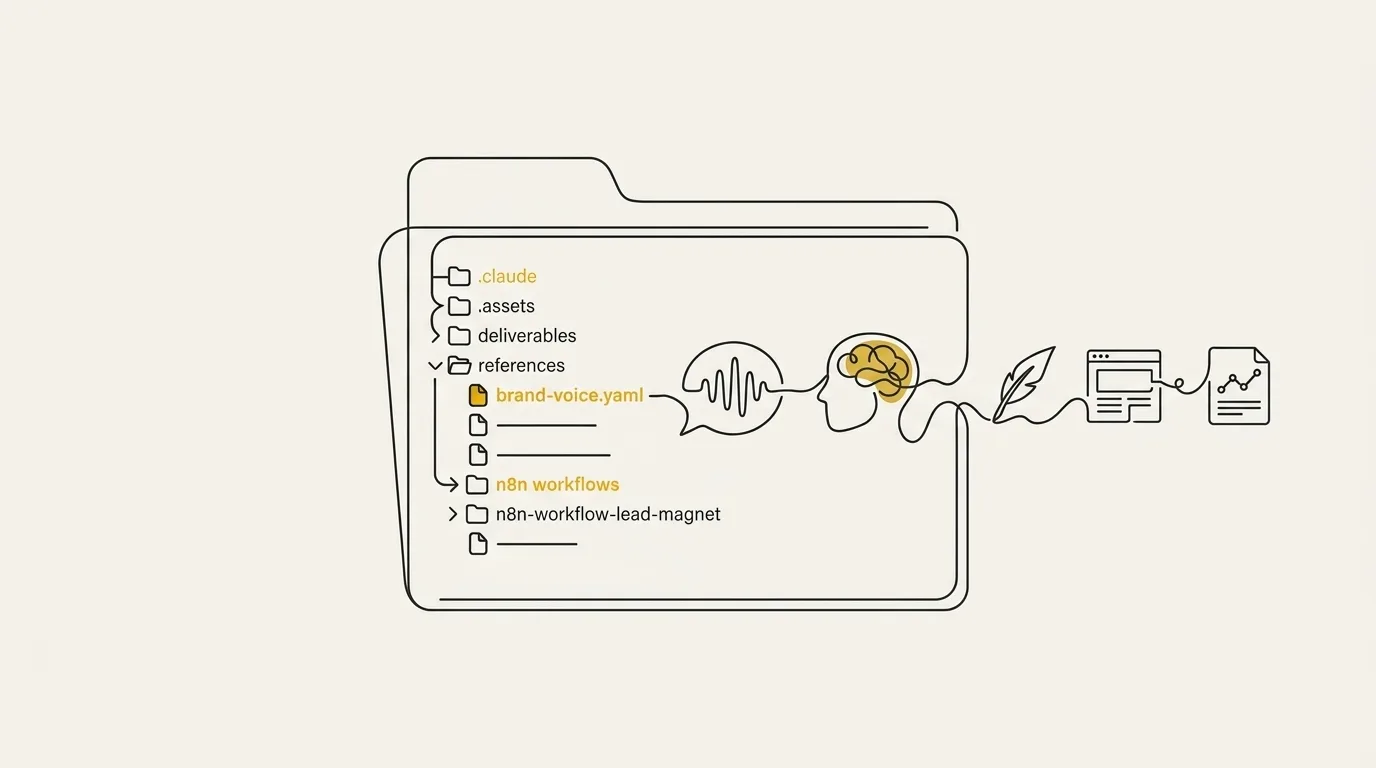
Create a dedicated master brand folder on disk, add subfolders for the areas you want to organize, and open it as a project in Claude Code or in any IDE that treats files like code. We park ours inside a system already in daily use (a git repo or an Obsidian vault), so the brand sits where the work happens.
Name the folder something obvious and drop in empty markdown files you will fill next. Claude Code reads whatever sits in that directory.
Step 2: Point the AI at the folder
At the start of a session, attach the folder, open the directory in Claude Code, or pass the path. Then give a short prompt telling the AI to read the folder before it does anything else.
That one line is enough once the files are in place. From there the AI works from your voice and visual rules instead of asking who you are.
Step 3: Save the project so every new chat reuses it
Keep the project around and reopen the same workspace for every new job. Each session then starts from the same brand context, with no re-attaching and no re-briefing.
This is where a brand brief becomes infrastructure you set up once. For the full folder-building detail, see our article How to Use Claude for Branding With a Brand Context Folder.
What Belongs in Your Brand Folder Before You Attach It
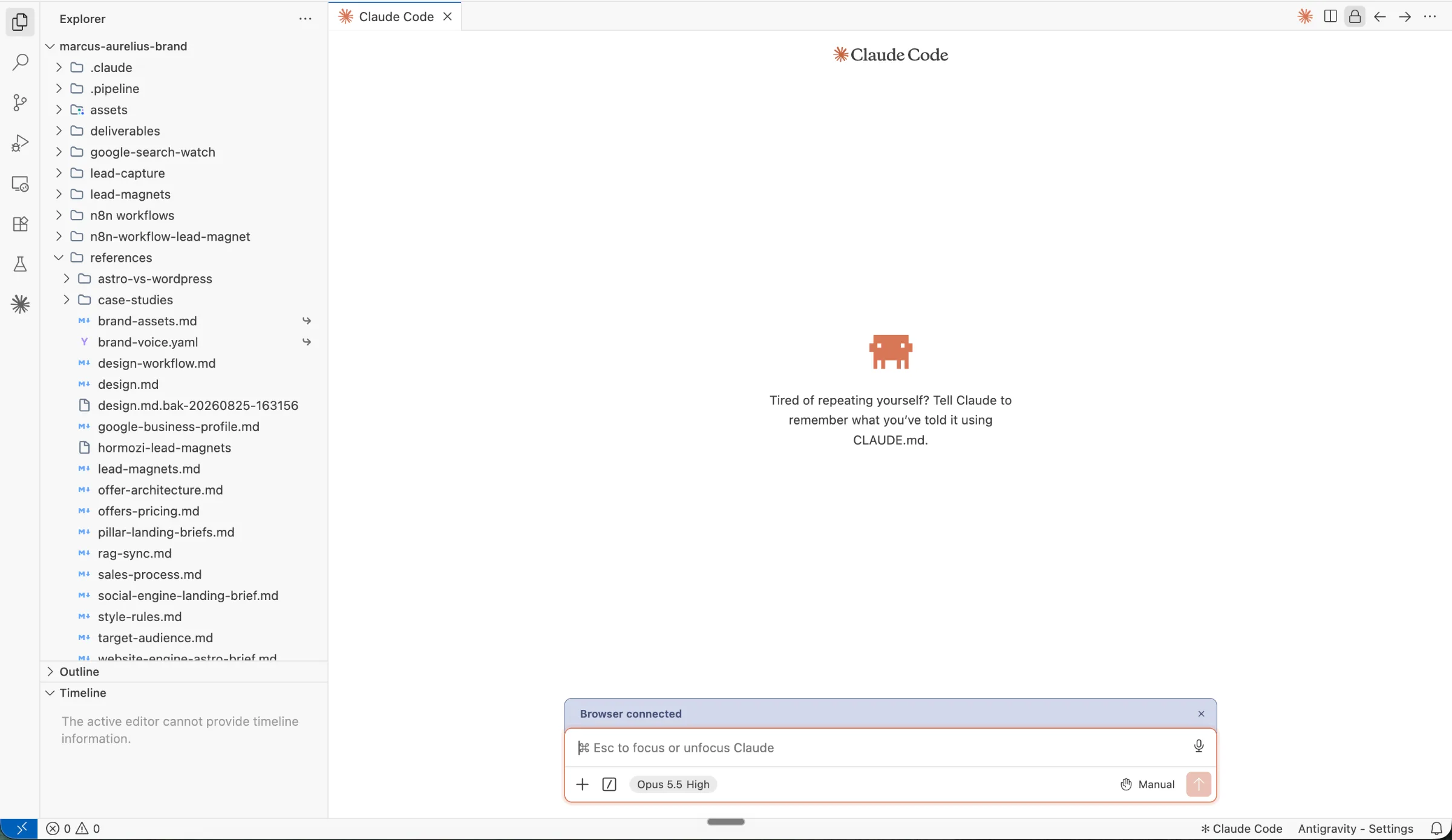
What belongs in a brand folder comes down to six things: target audience, tone of voice, positioning, brand colors and visual tokens, guidelines, and anything unique to the brand. Add proof and rules on top (short sourced case studies, claims you will stand behind, banned terms) and the AI has what it needs to write as you from the first message.
These files come from an onboarding questionnaire turned into structured files and subfolders, so nothing in the folder is guesswork. Pull voice from emails and landing pages you already wrote, since that is the register the model should copy. Keep each file short and sourced, and the brand context folder stays easy to attach and easy to trust. The full checklist lives in our guide on what to include in a brand context folder.
Why Attaching the Folder Beats Re-Briefing Every Chat
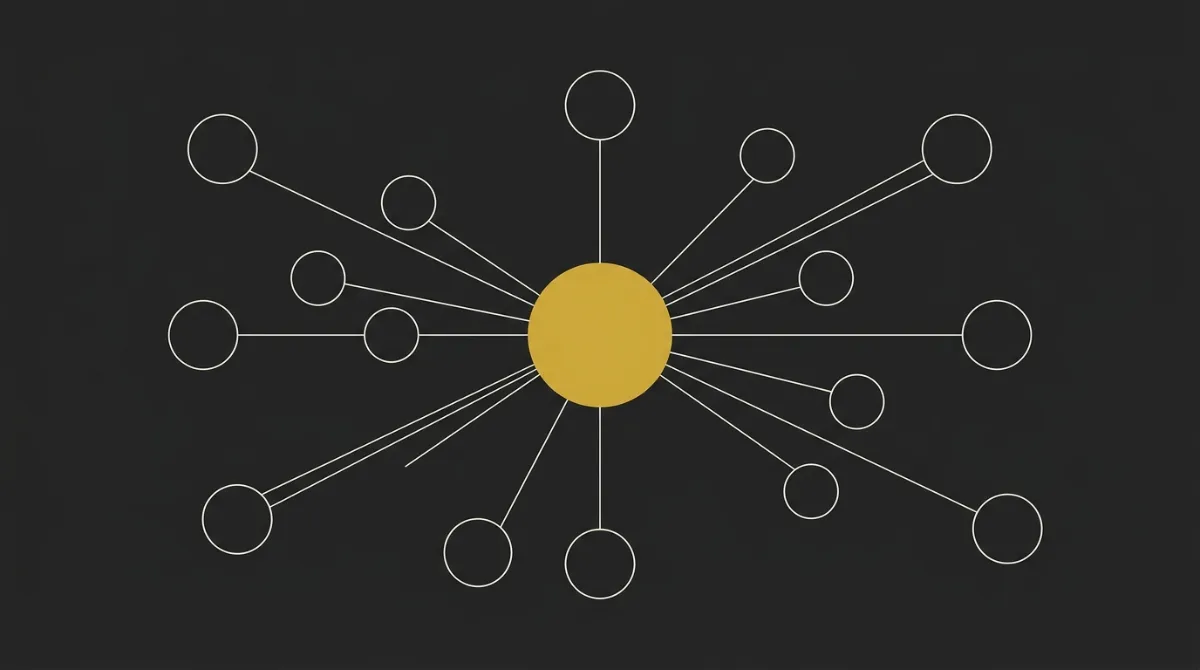
Re-pasting guidelines into each new chat is the industry default, and it’s the real reason AI output comes back generic. AI is stateless, so every session starts from scratch. You paste colors, voice notes and pricing, the model gets a thin summary of who you are, and it fills the gaps with the average of what it has seen on the web. Switch the model and you get the same result.
A folder the AI reads every session flips that. The brand becomes the source of truth, so the model works from your voice rules, services and data instead of guessing, and the guessing is where hallucination comes from. That is what keeps brand voice consistency intact from the first chat to the fiftieth, and what helps keep AI content on brand without anyone re-briefing. Treat the folder as attached infrastructure, built once and loaded every time, and the output stops depending on how well you wrote the prompt that day.
Common Mistakes When Attaching a Brand Folder
Four mistakes break an attached brand folder again and again, and each has a quick fix. A common failure we see is re-attaching files in each chat instead of reopening a saved project, which quietly loses context.
- Attaching files per chat: a file dropped into one chat disappears when that chat ends. Save the folder as a persistent project and reopen it every time.
- Dumping unstructured files: one pile of documents makes the AI guess what matters. Split the folder into subfolders for audience, voice, positioning, visual tokens, and proof, so the brand folder framework stays readable to you and to Claude.
- Leaving out proof and rules: with no source facts and no voice rules, the AI invents both. Add short proof points, banned words, and the hex colors from your visual tokens.
- Never updating the folder: a stale folder keeps feeding old positioning into new work. Update it when the brand changes, then point Claude at it again.
Also worth building in: a review pass before any asset ships. Check voice, facts, and visual rules against the folder, and the folder keeps paying off session after session.
What This Looks Like in Practice

Marcus-Aurelius Digital builds the brand context folder as the first step of every client onboarding, before strategy and before content. It starts with a structured onboarding form that captures the brand story, goals, audience, competitors, existing assets, and what success looks like in the client’s own words. An automation then creates the client’s workspace and sends a shared drive link with one instruction: dump everything in here.
From there I review the uploads, combine them with the form answers, and have the folder (voice, colors, typography, ICP, marketing strategy) complete within 48 hours. Every AI session for that client reads the same folder, so brand voice consistency holds from the first deliverable to the fiftieth. For a luxury villa brand, an AI-supported organic content system built this way helped take direct website bookings from zero to roughly half of all bookings.
If you’d like to see how this would work for your brand, get in touch and we can jump on a call.
Frequently Asked Questions
Do I need Claude Code to attach a brand folder?
No. An IDE like VS Code or a chat with the files attached at the start also works, and the same folder carries the same rules on every surface. Claude Code is the cleanest fit because the files live on disk and reload every session, so nothing needs re-attaching.
How do I stop AI output from sounding generic?
Load structured brand context before you ask for anything: positioning, voice rules, visual tokens, proof, and banned terms. Then review the draft and ask Claude why it chose that line or layout. A loaded folder plus that interrogation keeps the output in your voice, and it replaces re-briefing in every chat.
How long does it take to set up a brand folder?
A first pass takes one sitting. Dump positioning, voice, visual tokens, proof, and banned terms into the folder, then point Claude at it. You’ll tighten those files as real jobs come back, and every new asset reuses the same context.
Can Claude build brand guidelines for a team?
Yes. Claude can compile the folder into a guidelines document the team can share, pulling positioning, color, type, identity rules, and tone of voice into one place. Markdown, HTML, or JSON all work when you hand the pack to designers.
What’s the difference between Claude Projects and a shared brand folder?
Claude Projects keep persistent context inside Claude, so the setup stays tied to that workspace. A shared brand folder is a set of files you own and can point any surface at, which makes it easy to hand to a teammate or reuse in Claude Code. Many teams keep the folder as the source and load it into a project, so both stay in sync with what belongs in a brand folder.
Does the folder work across different chats automatically?
It does once you save it as a project or reopen the same workspace. In both cases every new chat starts with the brand already loaded. A one-off attachment covers only the chat it was added to.